Create your account
About five minutes. You sign up with your email address and a password, confirm a mobile number with a code sent by text, then confirm your email with a code of six numbers. Creators and learners sign up through different doors; this page covers both.
Before you start
- An email address you can read now, and a mobile phone that can receive a text.
- Creators, during the alpha: signing up asks for a place, and we approve it. See Ask for an invitation.
- Learners never wait for approval.
Create a creator account
Start from Start building on the home page, Get Started on a pricing plan, or Get Started at the top of the page. The Create Account tab is where you start.
-
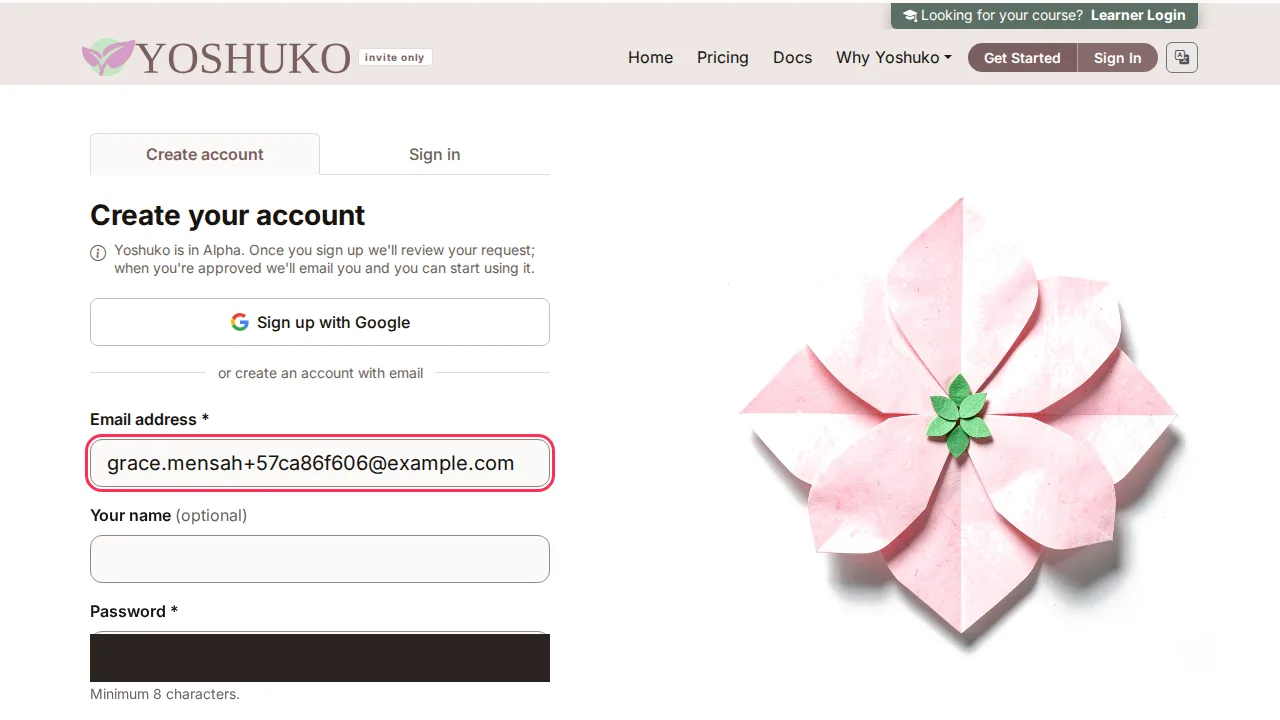
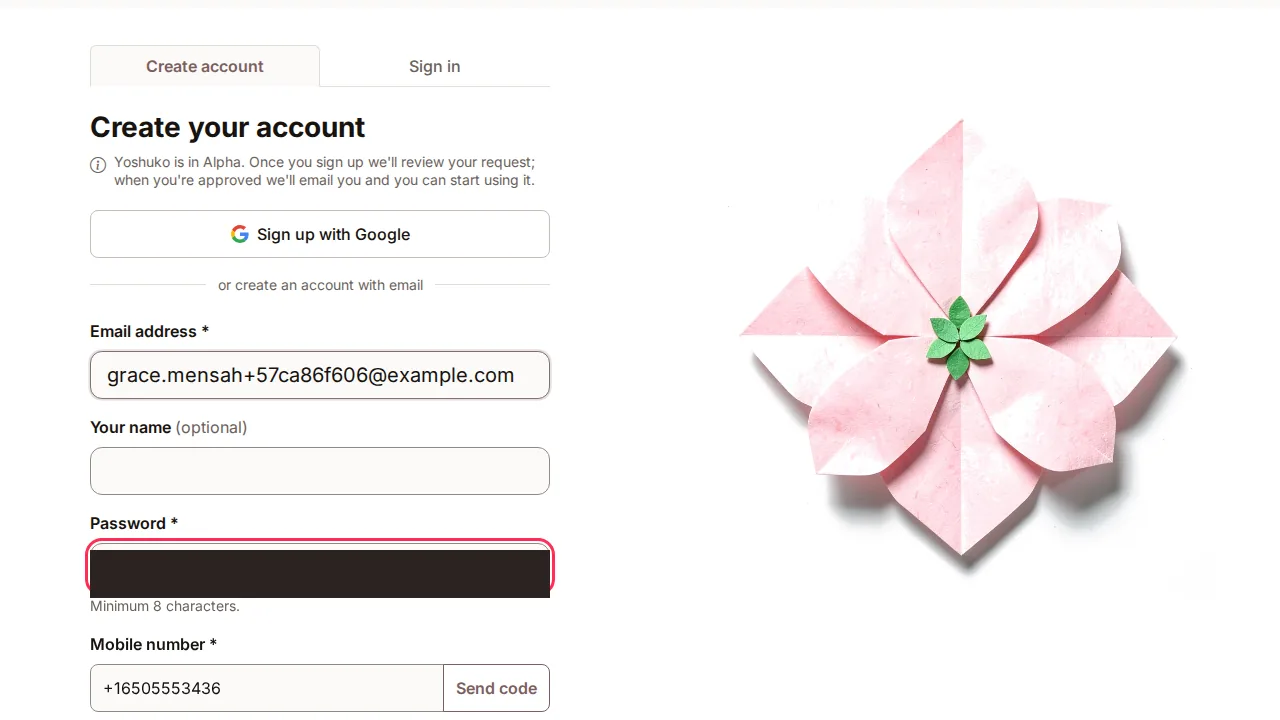
Enter your Email address, and, if you want, Your name.
-
Choose a Password — at least 8 characters.
-
Confirm you are a real person. Enter your Mobile number and press Send code, then type the code into Enter the code we texted you. The step changes to Number confirmed. (Change number lets you use a different one;
Resend codesends another text.)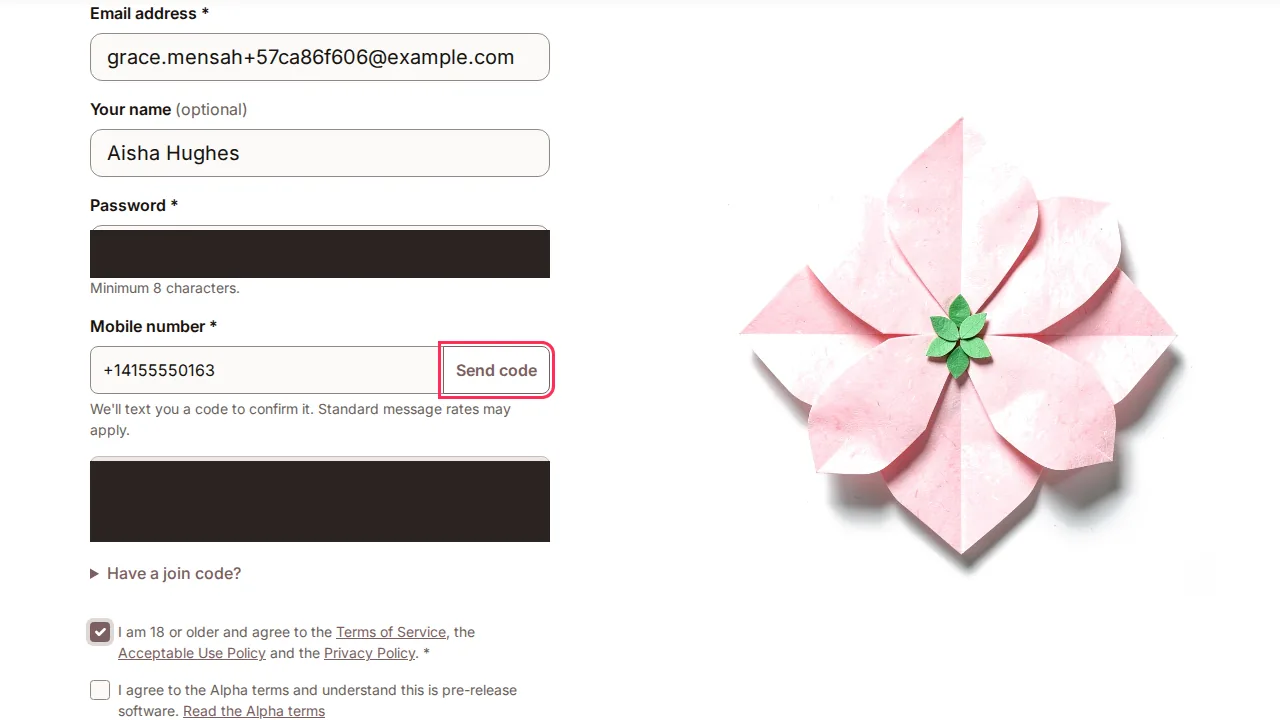
If you are offered a choice under How should we confirm you are a real person?, you can pick Start a paid plan instead and pay by card once your account is set up. You only need one of the two.
-
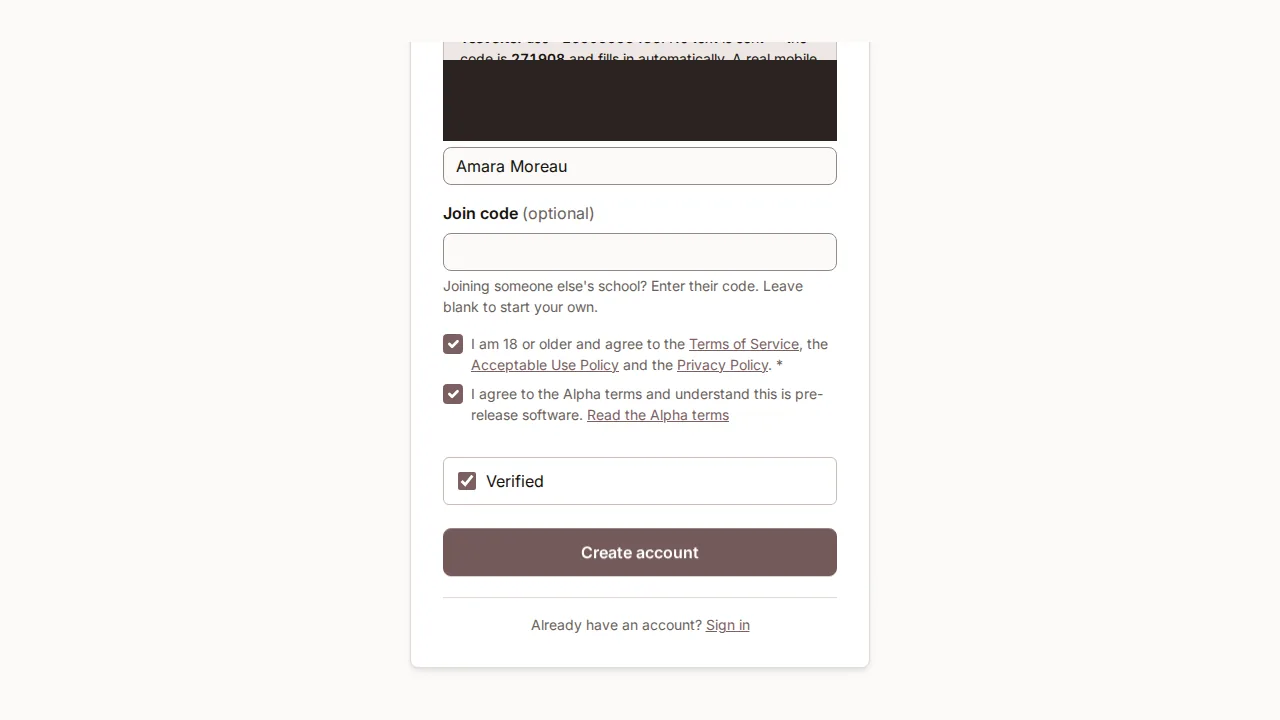
Joining an existing organisation? Open Have a Join Code? and enter it in Join Code. Leave it blank to create your own organisation.
- Check the box to confirm you are 18 or older and agree to the Terms of Service, the Acceptable Use Policy and the Privacy Policy. During the alpha, also check I agree to the Alpha terms.
-
Press Create your account.
The separate sign-up page
The sign-up page is a single-page version of the same form. Its fields are named slightly differently — Display name instead of Your name — and its button reads Create account. Everything else works the same way.
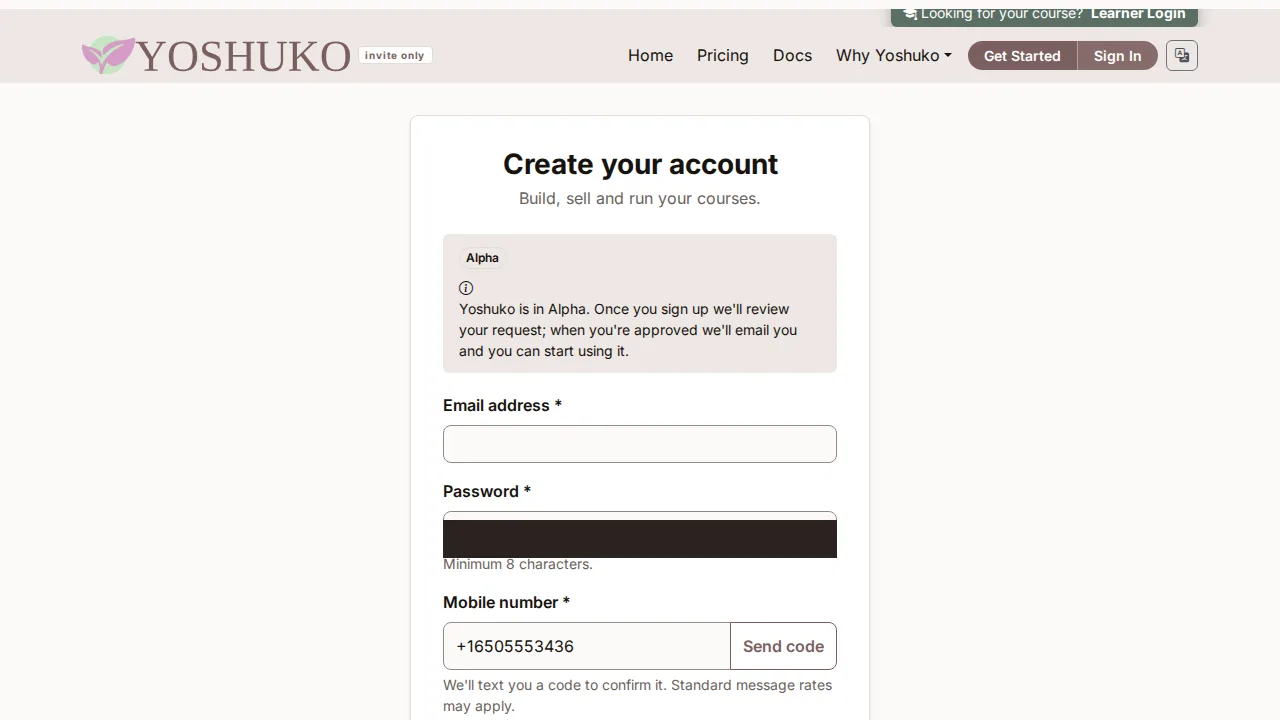
If you came from a pricing plan, the form reminds you which plan you chose — payment is taken at checkout, after the account exists.
Sign up with Google
Where it is offered, Sign up with Google on the Create Account tab creates your account from your Google identity instead of a password.
Confirm your email address
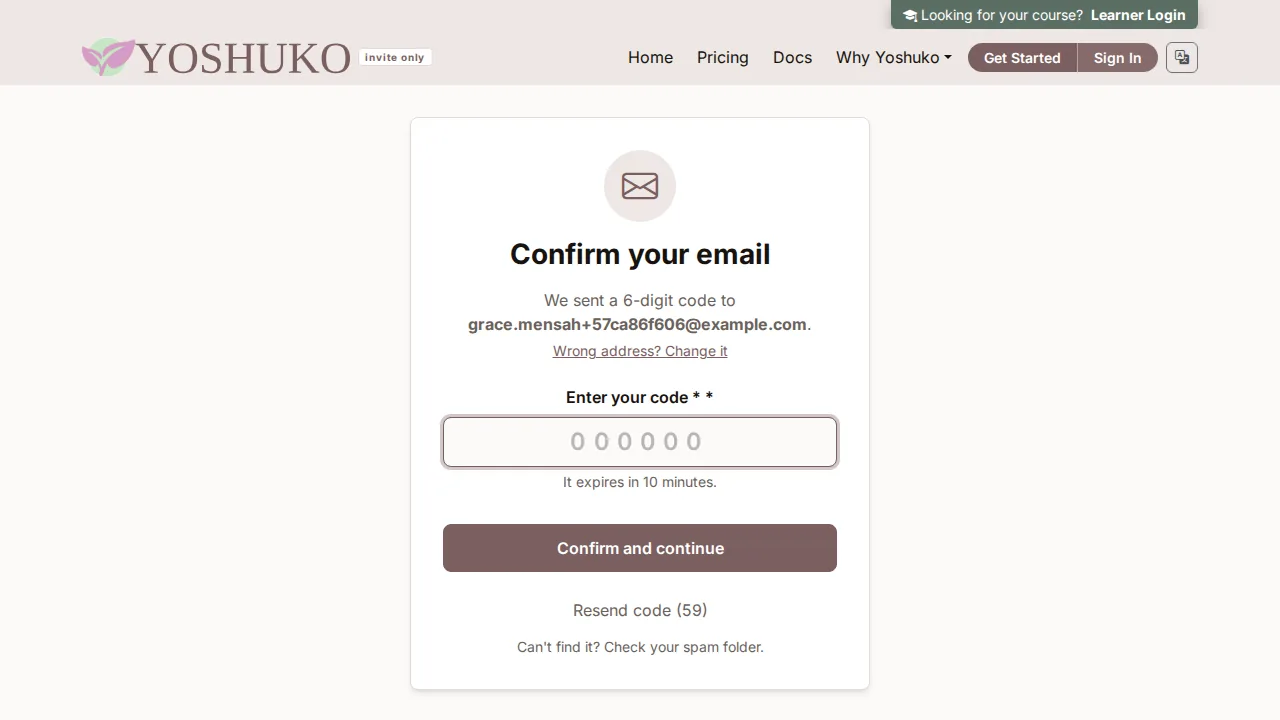
Straight after you sign up, Yoshuko shows Confirm your email and sends a code of 6 numbers to your address.
- Type the code into Enter your code. It stops working after 10 minutes.
- Press Confirm email.
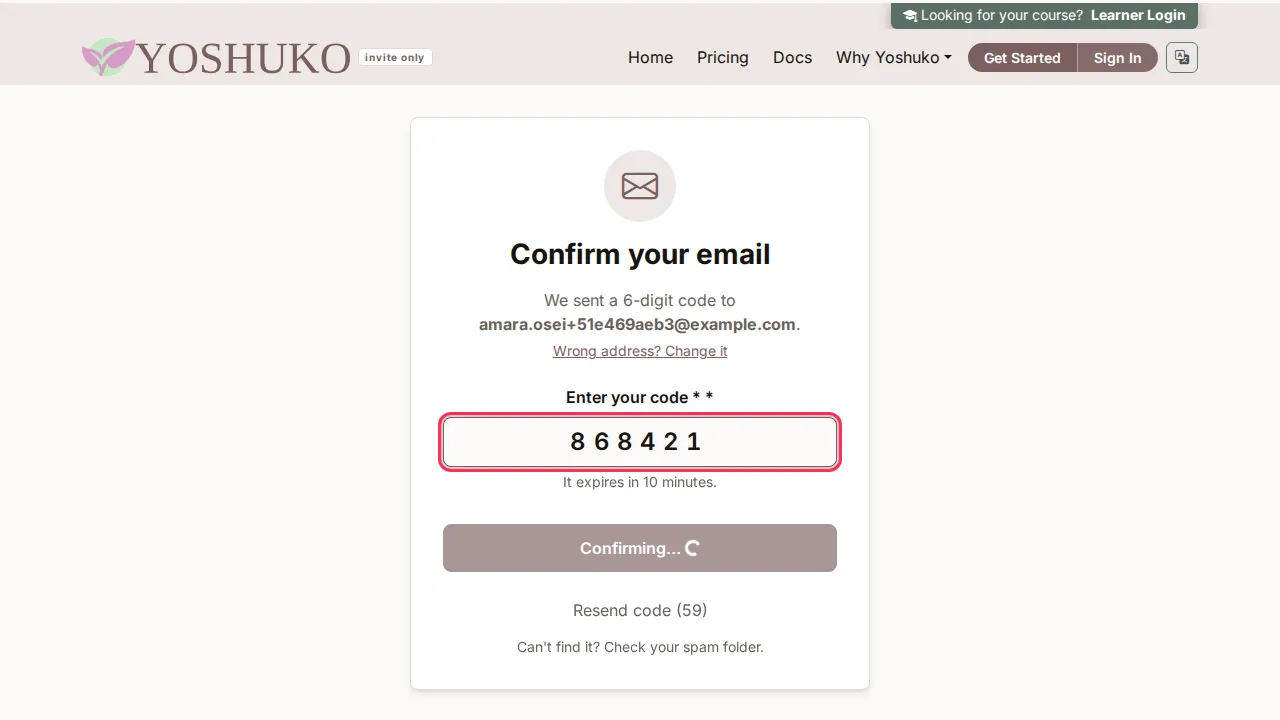
Your account is now confirmed and you are signed in. A creator goes on to the creator studio — see Set up your organisation; during the alpha, a new creator first sees Welcome to the Alpha until their place is approved. A learner goes to their courses.
Code not arrived? Check the folder where your email program puts mail it thinks is not wanted, then press Resend code.
An older link to confirm your email
If you are clicking a link to confirm your email from an older email rather than typing a
code, the page shows Verifying your email… (checking your email) and then
either Email verified! (it worked) or Verification failed (it did not work,
see verification) with the reason — for example
This link has expired or has already been used. From there you can Create a new account or, if you
already confirmed, Sign in here.
Sign up as a learner
Learners sign up at the learner sign-in page — press Learner Login (the login page for learners) at the top right of the Yoshuko home page, or use the sign-in link your course creator sent you.
- Under Create your account, enter your Email, and, if you want, your Name.
- Choose a Password.
- If your teacher gave you one, enter the Course Code (you do not have to).
- You do not have to give a Mobile number here.
- Check the box to agree to the terms, then press Create account.
Then confirm your email with the code, as above. You land in your courses — see Take a course.
If something goes wrong
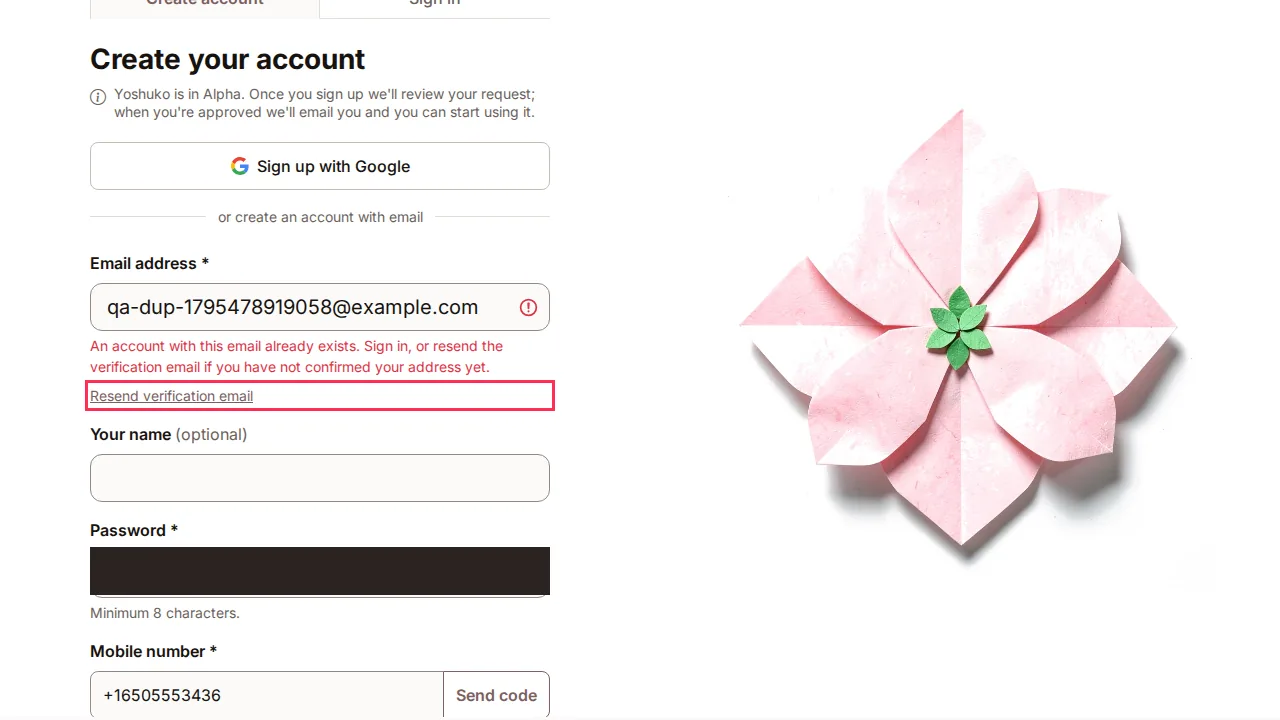
The form keeps what you typed when it refuses a sign-up, and shows the reason next to the field that caused it.
| You see | What it means | What to do |
|---|---|---|
| An error under Email address saying the address is already registered | An account already exists for that address | Press Resend verification email under the field if you never confirmed it, or use the Sign In tab |
| An error under Password | It is shorter than 8 characters | Choose a longer password |
| An error under the box for the terms | The box was not checked | Check it and send the form again |
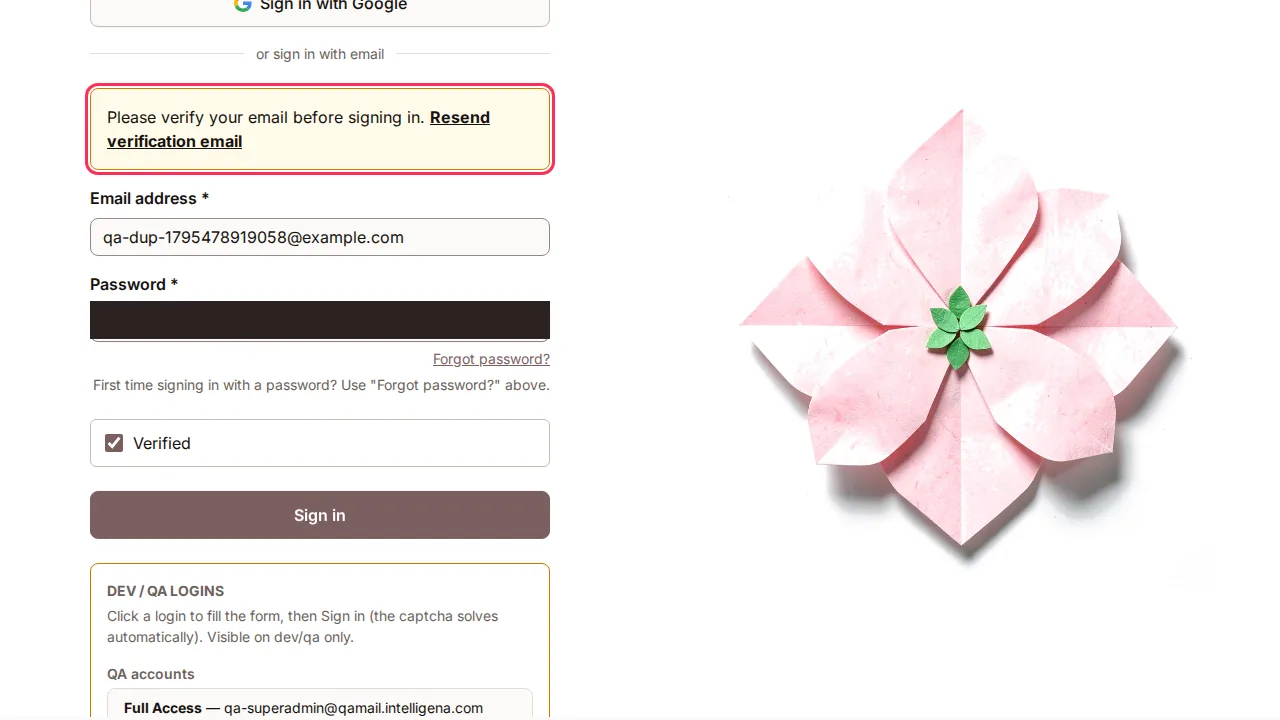
Please verify your email before signing in. on the Sign In tab |
The account exists but its email was never confirmed | Press Resend verification email in that message, then enter the new code |
| The learner form says the address is already registered | Same as above, on the learner page | Press Resend verification email under the form |
Please accept the Alpha terms to continue. |
The I agree to the Alpha terms box was not checked | Check it and send the form again |
| Welcome to the Alpha after you confirm your email | Your place in the alpha is not approved yet | Ask for an invitation explains what happens next |
| The email code is refused | It is wrong or older than 10 minutes | Press Resend code and use the newest one |