Get an API key
About three minutes. An API key lets an AI agent or a small program manage your organisation's courses without your password. You choose exactly what each key may do, and you can turn it off for good at any time.
Before you start
1. Open your organisation's API keys
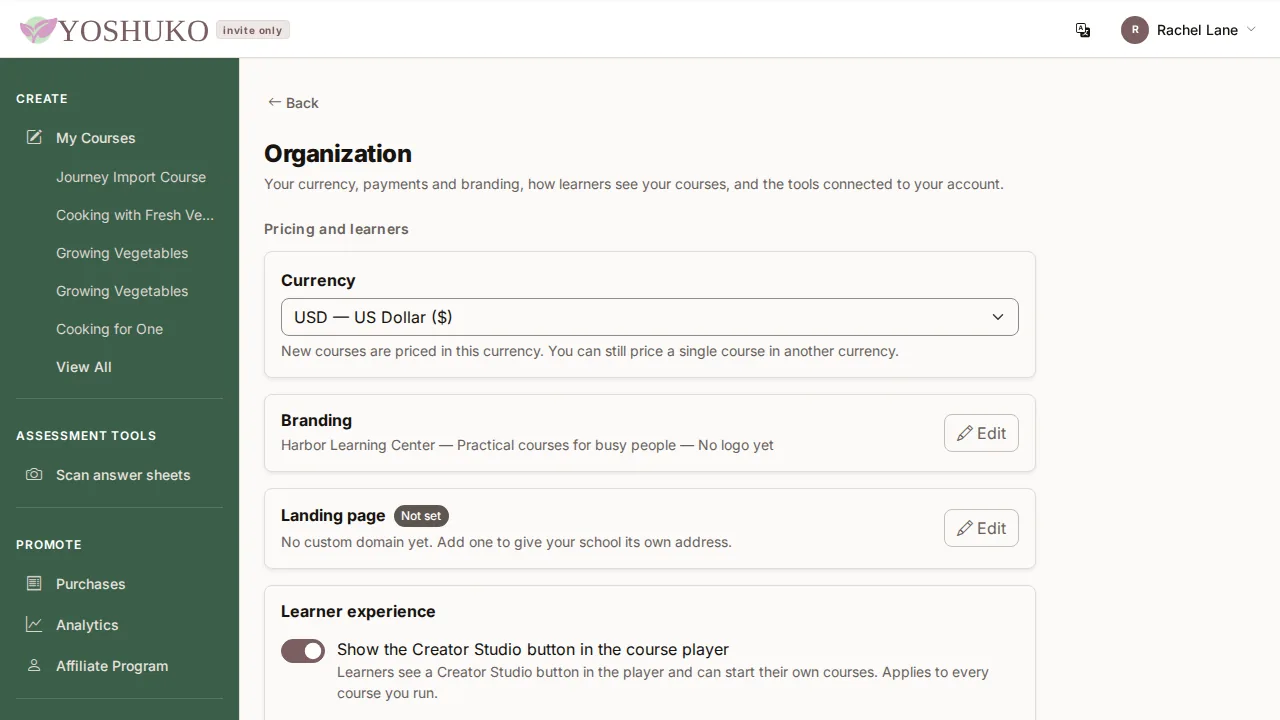
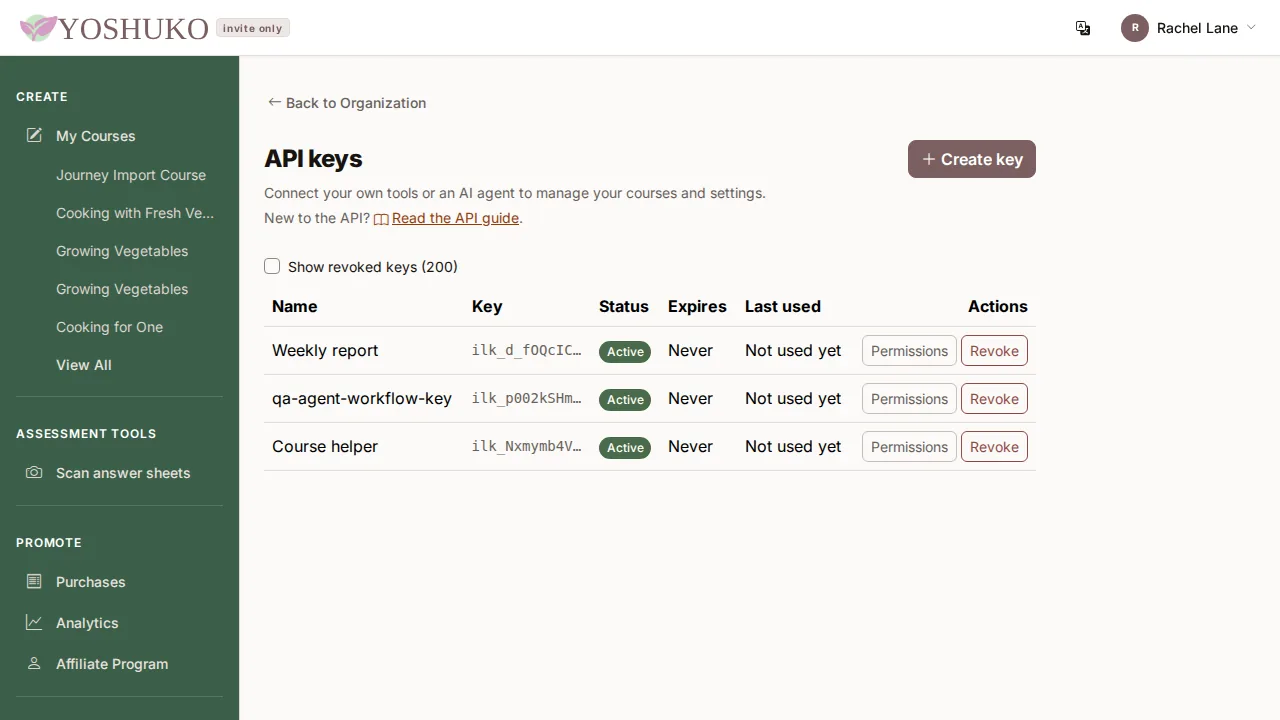
In the creator studio, choose Organization in the left-hand menu. The API Keys card, near the bottom, shows how many keys are active. Press its Manage button.
2. Create the key
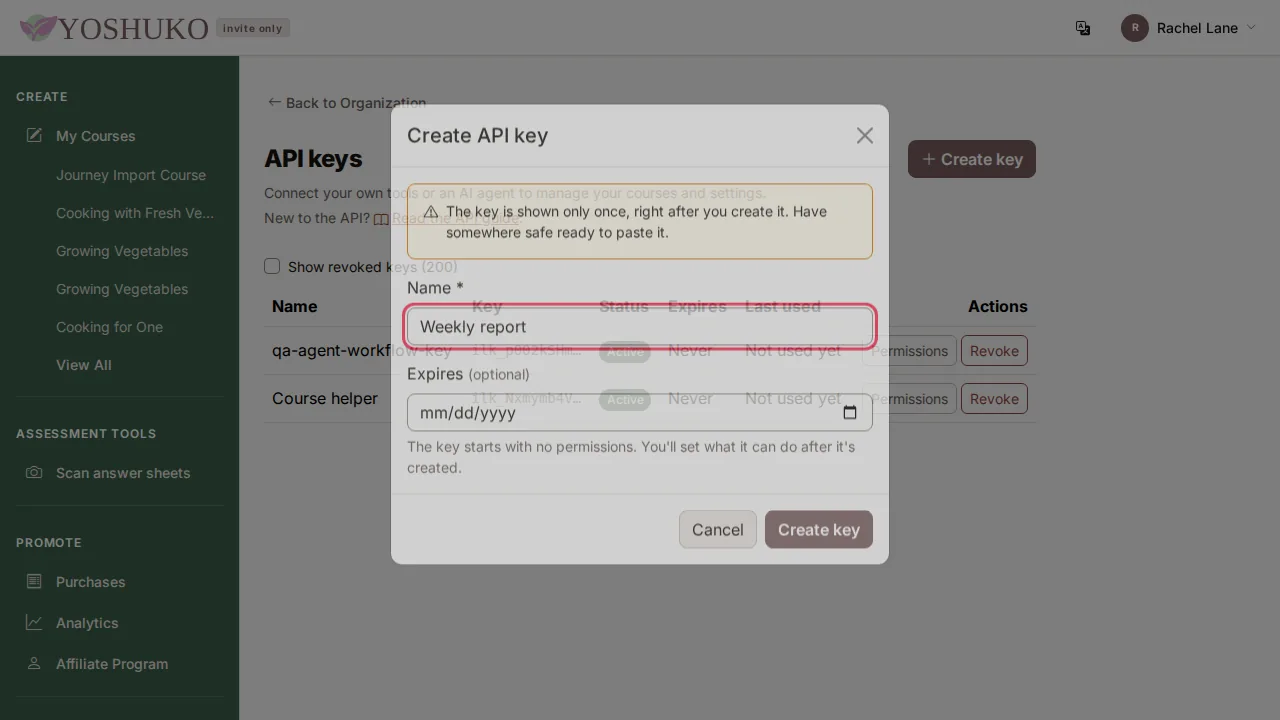
Press Create key, give it a name you will recognise later — for example the name of the agent that will use it — and press Create key again. You can also give it a last day on which it works, but you do not have to.
3. Copy it now — it is shown only once
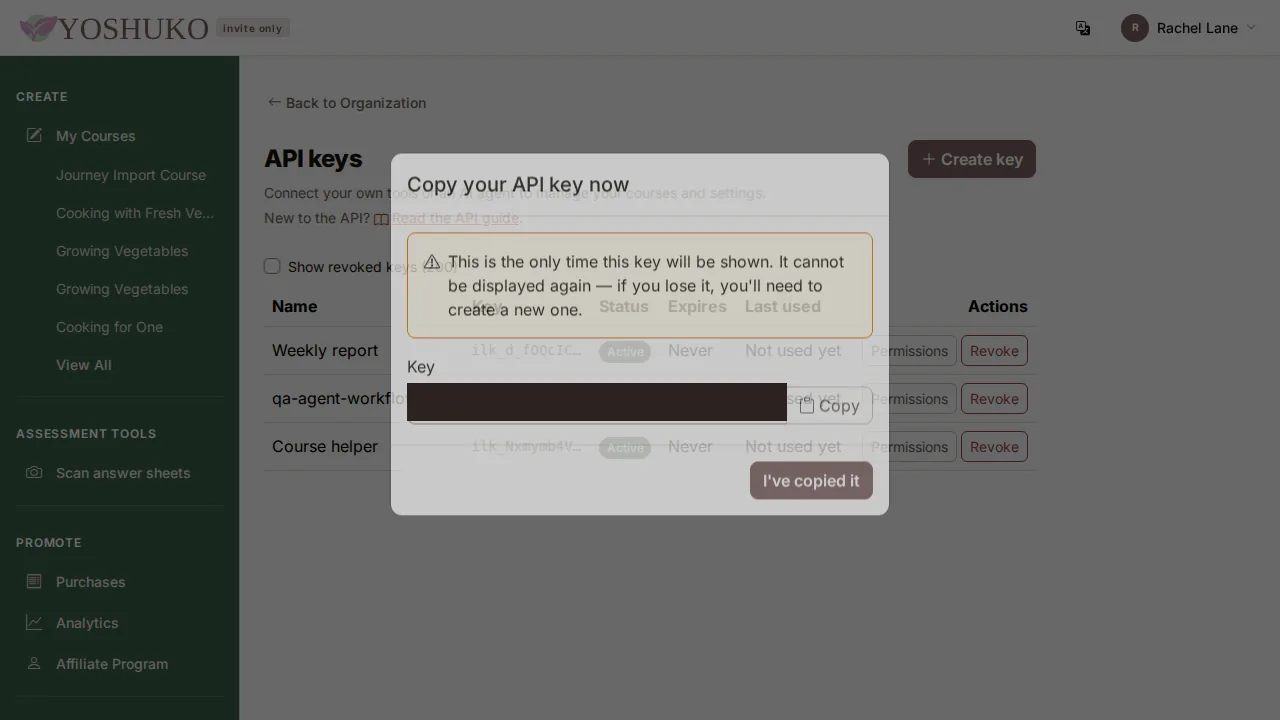
Yoshuko shows the full key exactly once. Press Copy, store it somewhere safe (a password manager, or your agent's secret store), then press I've copied it.
If you lose the key
It cannot be shown again. Turn it off (see the end of this page) and create a new one — it takes a minute.
4. Choose what the key may do
A new key can do nothing until you say so. Press Permissions on its row,
choose No access, View or Edit (change) for each area, and press Save permissions.
| Area | What the key can do |
|---|---|
| Courses | list and read courses (View); also create, change and remove them (Edit) |
| Units (called chapters in the API) | the same, for the chapters inside a course |
Lessons (including quizzes and tasks) |
the same, for lessons, and for each quiz and task |
| Organization settings | read (View) or change (Edit) settings such as the usual money your prices are shown in |
For an agent that builds courses, set the first three to Edit and leave
Organization settings at No access.
5. Check it works
Give the key to your agent, or try it yourself — put your own key in place of the example text:
export YOSHUKO_API_KEY="ilk_…your key…"
curl -sS "https://www-dev.yoshuko.com/api/v1/agent/whoami/" \
  -H "Authorization: Bearer $YOSHUKO_API_KEY"
You should see your organisation's name and the permissions you just chose. Next: your first API call, in more detail.
Turning off a key
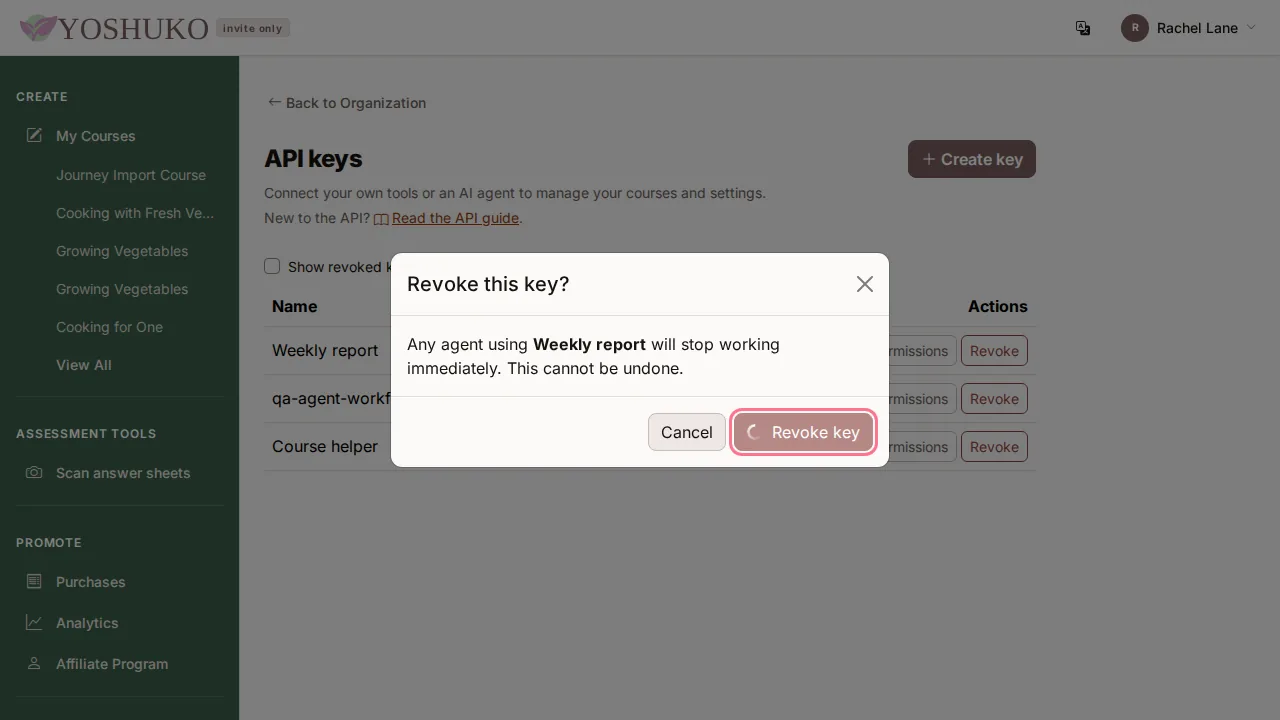
Press Revoke (turn off) on the key's row and confirm. The key stops working immediately —
the very next request with it is refused.