出席とバッジ
Every course has an attendance register (a list of who came) that you can check by hand. You can also give every learner a badge with a QR code on it (a badge is a card with a square code) and let a tablet at the door — or your own device, pointed at the room — read badges and mark learners present. Setting up takes about five minutes.
開始する前に
- コースのクリエイターである必要があります。また、コースに参加している受講者が必要です。 受講者とコホートを追加(コホートとは一緒に学ぶグループのこと)をご覧ください。
- キオスク(ドア付近の画面で受講者がバッジを提示するもの)には、カメラとウェブブラウザ[(glossary:browser)]を持つ端末が必要です。Yoshukoにログインする必要はありません。
手動で出席を記録
- コースを開き、メニューの受講者の下にある出席を選択します。
- 受講者のチェックボックスをクリックして日付に出席を記録し、チェックを外すと取消します。 各チェックは即座に保存されます。
- 矢印ボタンを使って前または次の期間へ移動します。
バッジによる出席が有効になっていようとも、このリストは正常に動作します。
コースの出席を設定する
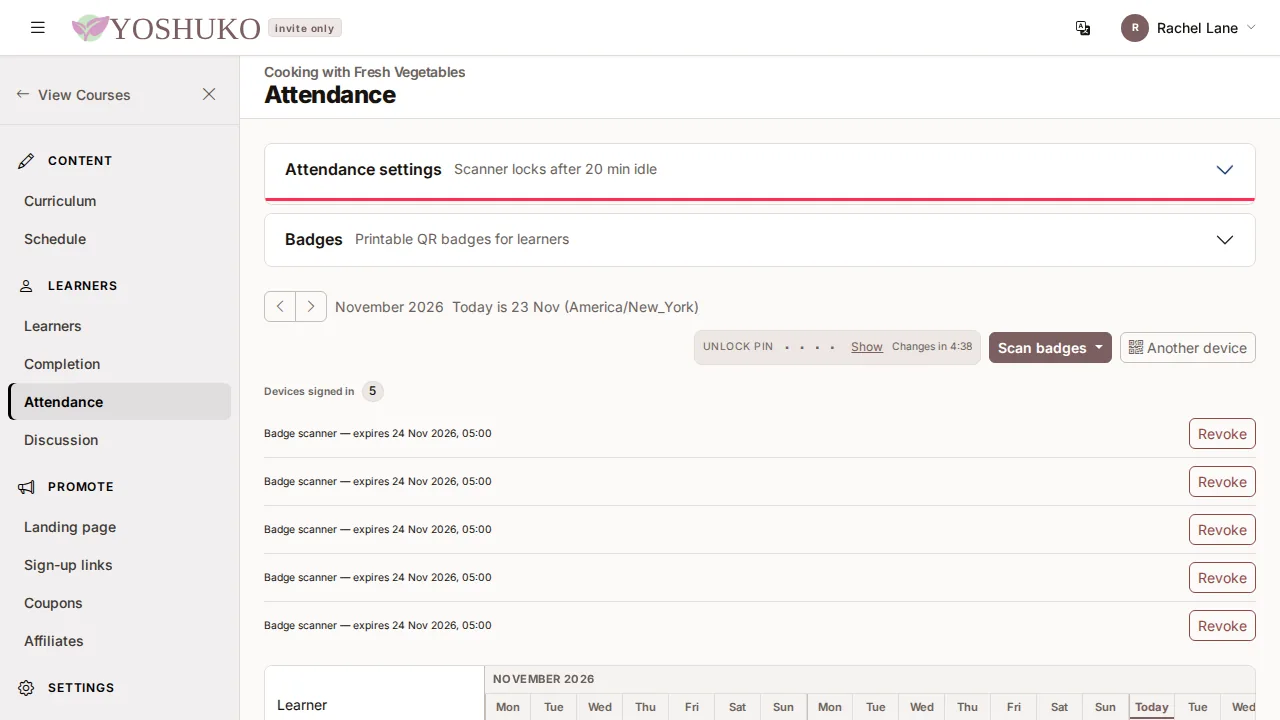
- On the Attendance screen, open Attendance Settings.
- Choose:
Date format—MM-DD-YYYYorDD-MM-YYYY(the order of month, day and year), for the column headings.Kiosk lock timeout— 10 minutes to 60 minutes. The kiosk locks after this long with no activity.- Course time zone — decides which day a mark is recorded on. It is also on the course's Details and Schedule screens.
- Enable badge attendance for this course — turn this off and the screens that scan badges stop working, and any device links stop working immediately. The register does not change.
- Press Save settings. Saved appears beside the button.
バッジを印刷する
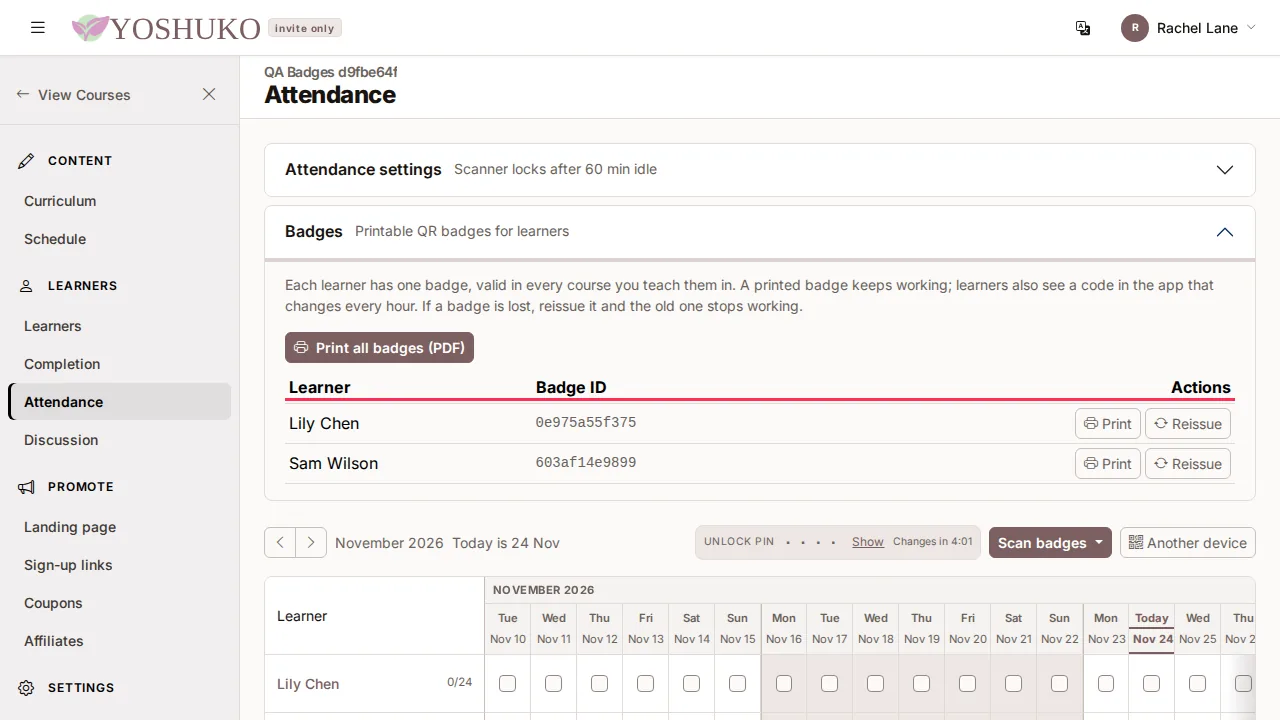
各受講者はあなたの組織で有効な1枚のバッジを持ち、すべてのコースで使用できます。出席画面のバッジを開きます。
- リストには、コースの各受講者とその短いバッジ ID が表示されます。
- 受講者の横にある Print を押すと1つのバッジを印刷できます。または
Print all badges (PDF)を押してクラス全体のバッジを印刷します。印刷用のファイル downloads: 受講者の名前、組織の名前、QRコードが記載されたカードで、切り取り線も付いています。開いて通常通り印刷してください。
印刷は繰り返しても安全です。印刷されたバッジは決して変更されませんので、受講者のバッジを 再度印刷しても同じコードになります。先学期に配布されたバッジも引き続き有効です。バッジは最初の印刷または表示時に作成されます。
なくしたバッジを置き換える
- Press
Reissuebeside the learner. - Confirm. The old badge stops working straight away, in every course you teach that learner in, and a new one exists. Print it afterwards.
現在のバッジを保持という選択肢は変更しません。
受講者のアプリ内のコード
Learners also see their badge in the Yoshuko app, under Settings → Attendance badge. That code changes every hour, so a picture of the screen cannot be shared around. Nothing for you to do: both kinds work at the kiosk and with Classroom scanning. See Your attendance badge.
ドア付近のタブレットでキオスクを開く
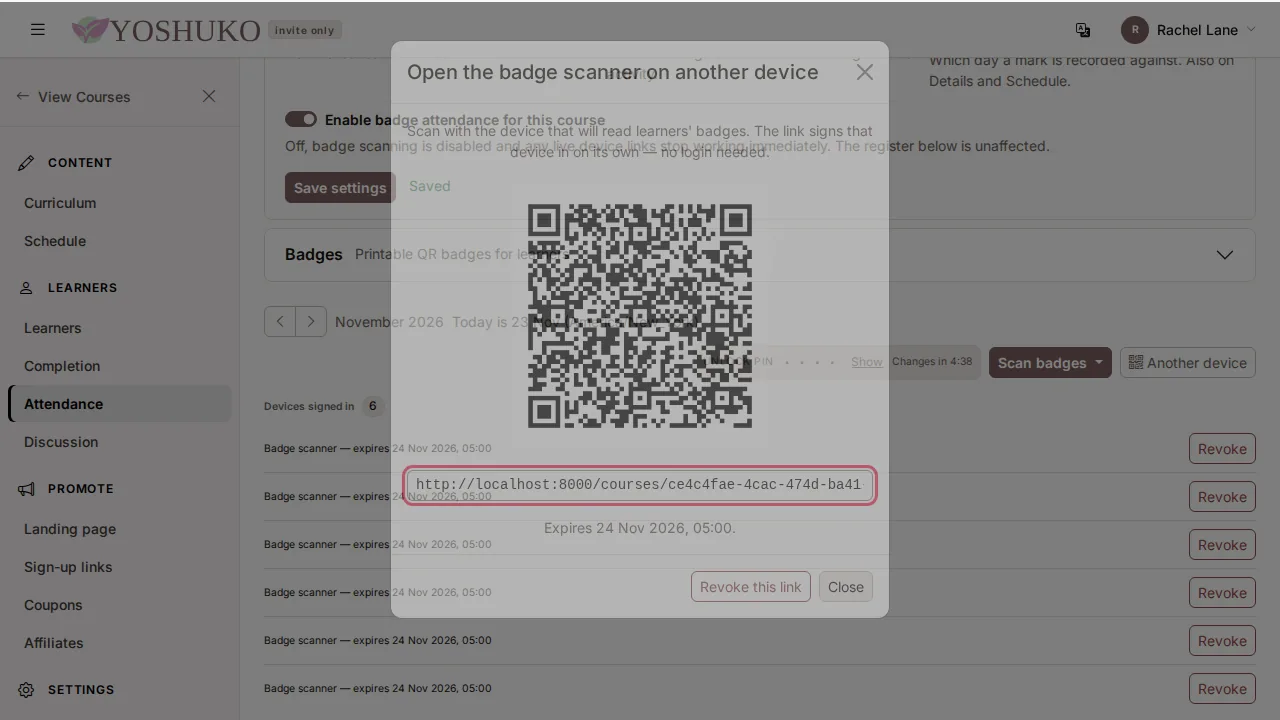
- On the Attendance screen, press Scan badges and choose Individual to open it on this device — or press the QR code button (Open on another device) to open it somewhere else.
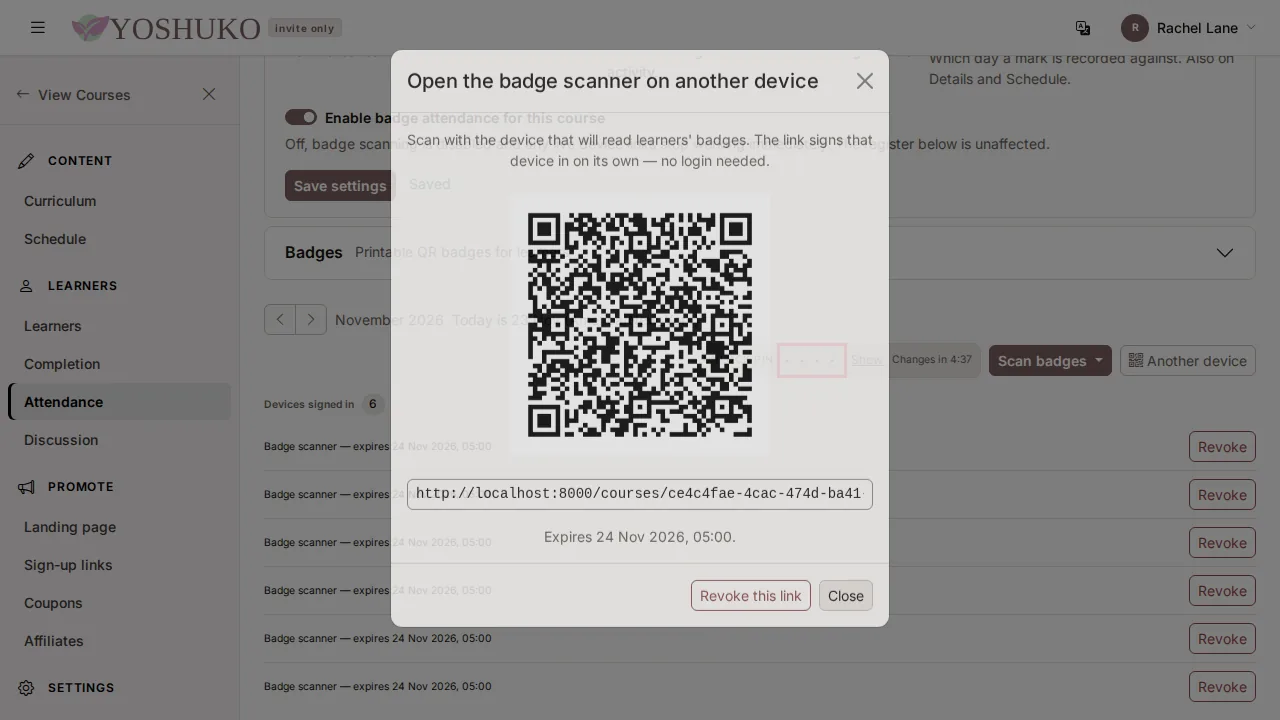
- In Open on another device, scan the QR code with the tablet, or type the link shown under it. The link signs that device in on its own — no login needed. It shows when it stops working.
- On the tablet, allow the browser to use the camera.
The kiosk shows Hold your badge up to the camera. Learners hold up their printed badge, or the code on their phone.
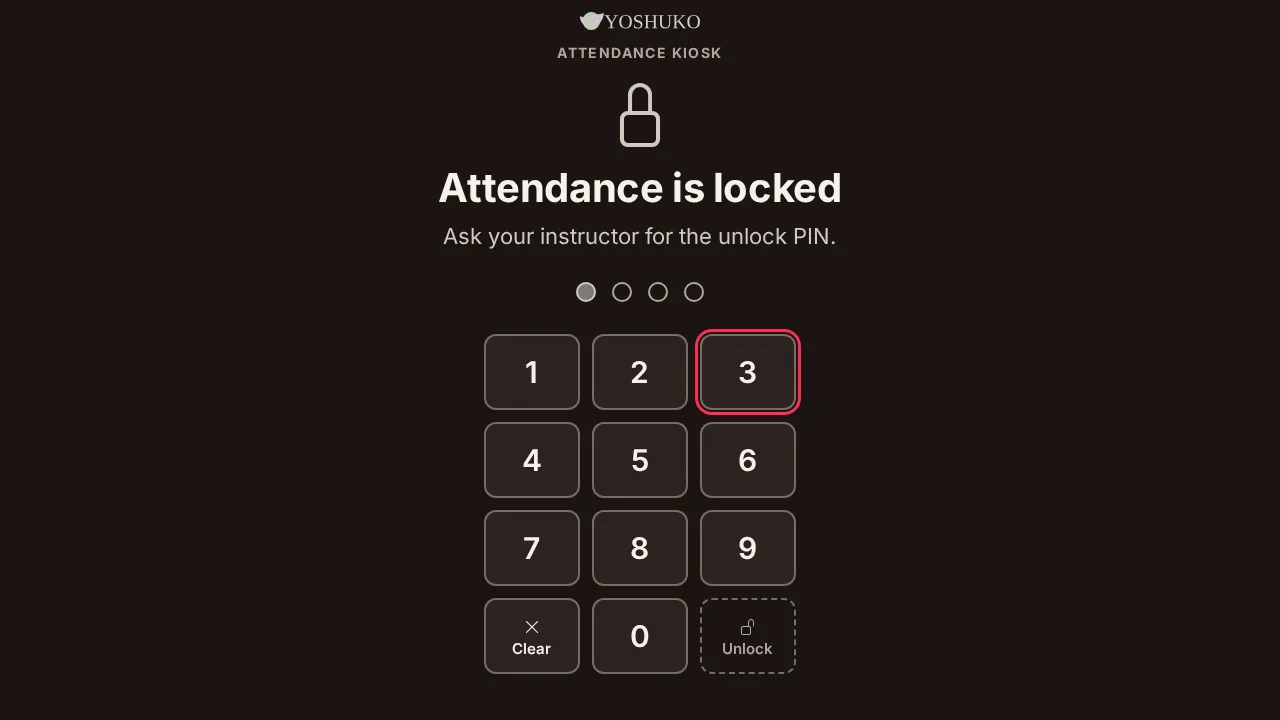
ロックされたキオスクを開くPIN
The Unlock PIN in the row of buttons at the top of the Attendance screen is a code of four numbers that changes every five
minutes. When nobody has used the kiosk for longer than its lock time, it shows
Attendance is locked. Read the PIN off your Attendance screen and type it on the
kiosk's number buttons to carry on.
デバイスの出席記録を停止する
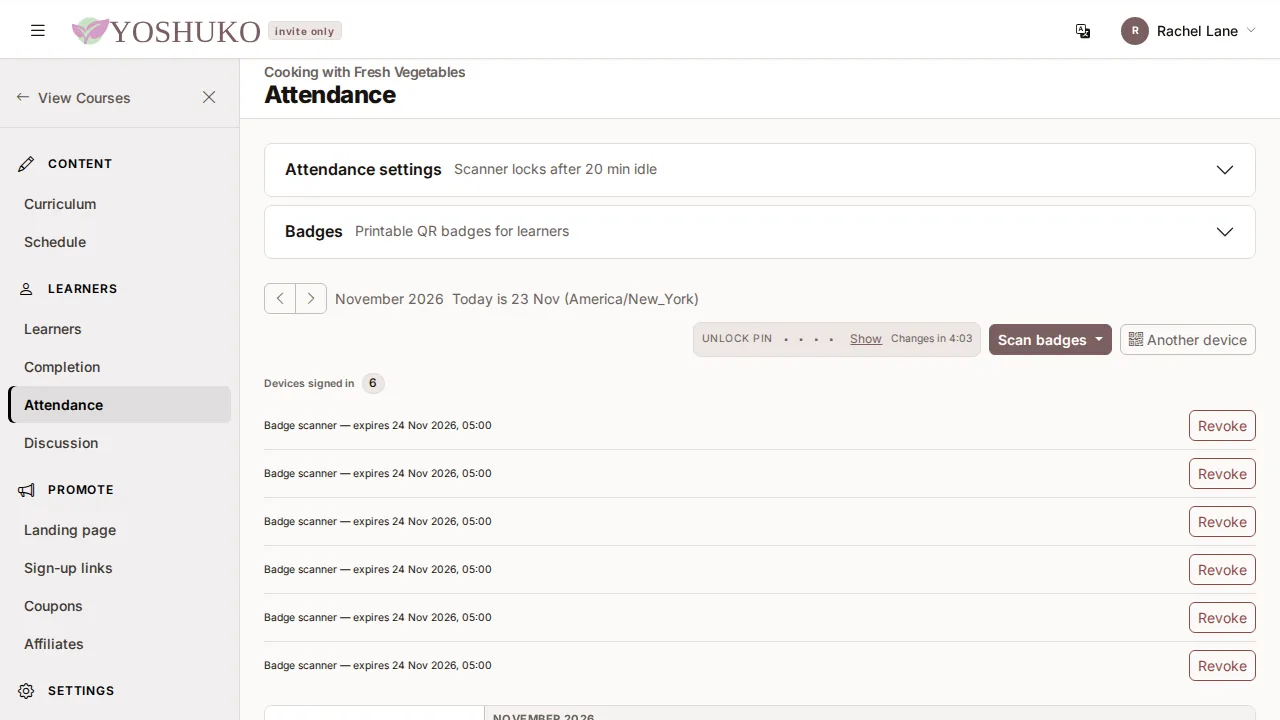
デバイスがサインイン中という出席画面のリストには、現在キオスクリンクを持っているすべてのデバイスと、 そのリンクが停止する日時が表示されます。
- デバイス横にある
Revokeを押してください。(QRコードボックスから、Revoke this linkはあなたが作成したリンクと同じ動作をします。)
That device stops marking straight away and shows This link has ended.
受講者がキオクスで見る内容
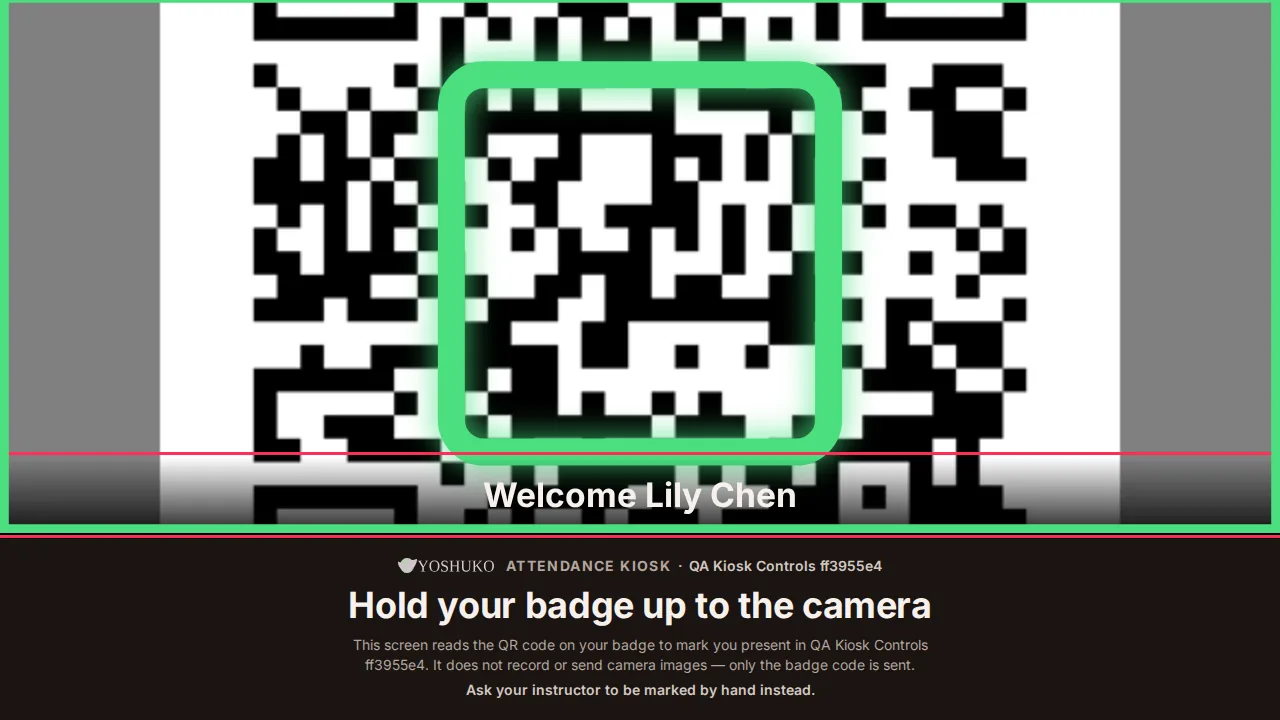
- A learner holds up a badge. The kiosk shows Welcome and their name, then Thanks, … — Next person, please step up.
- They are marked present for today — "today" meaning the date in the course time zone, not the tablet's.
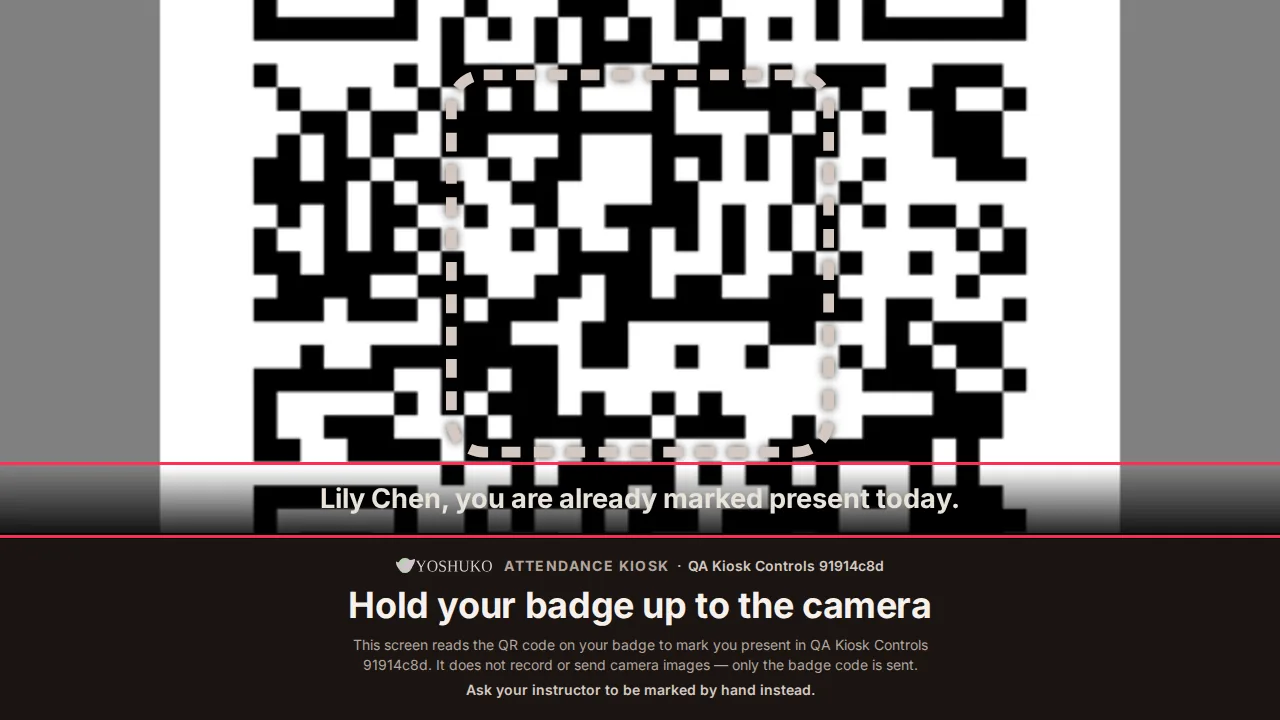
- If the same badge is held up again the same day, the kiosk says they are already marked present today. They are not marked twice.
キオクスが受け付けないバッジ
キオクスは理由を文章で説明し、誰も記録しません:
| キオスクに表示されている | なぜ |
|---|---|
| バッジが認識されません | このコースのバッジではないコードです。 |
That app code has expired — refresh it in the app |
アプリのコードで、1時間以上経過しています。 |
| そのバッジは置き換えられました | 受講者に新しいバッジを渡しました。 |
Not enrolled in this course |
実際のバッジですが、受講者はこの 名簿(クラスのリスト)に登録されていません。 |
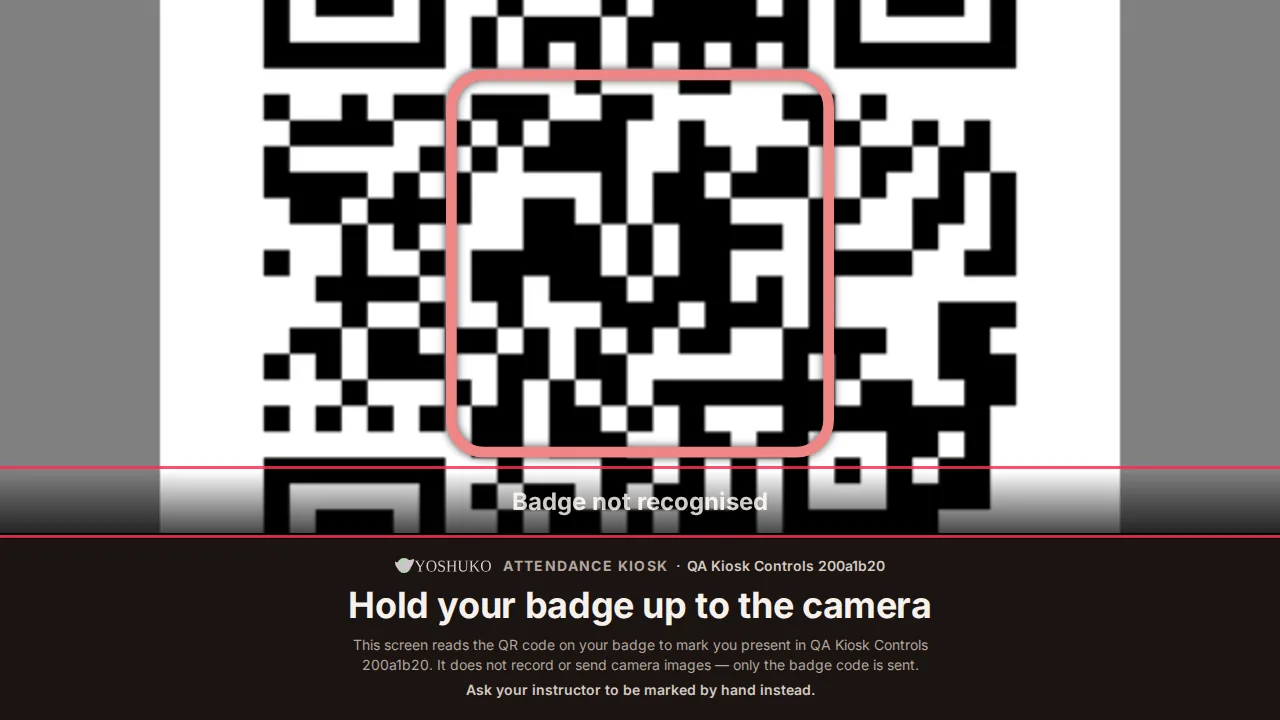
QRコードであっても、Yoshuko バッジでないものはメッセージなしで無視されます。
教室全体をスキャン:クラスルームオプション
バッジをスキャン という出席画面の選択肢は2つあります:
- 個別 — 上記のキオスク、ドアに設置した1台のデバイス。
- 教室用 — このデバイスのカメラを自分で使う。部屋に向かって持つと、受講者がバッジを順番に掲げて、それぞれ「今日」出席済みとして記録され、
Present today N / totalがカウントアップします。この機能はコースのクリエイターとしてログインしたあなただけが開ける;共有リンクはありません。
クラスルーム スキャンでは、手動で記録した出席記録は変更されません。
クラスルームが開始できないとき
| あなたが見る内容 | どうすればいいか |
|---|---|
| このコースではバッジ出席が無効になっています。 | 設定で このコースのバッジ出席を有効にする をオンにします。 |
No learners are enrolled in this course yet. |
受講者をまず追加してください。空の部屋にはカメラを開けません。 |
| ローティングを読み込めませんでした。 | 接続を確認し、クラスルームをもう一度開いてください。 |
| カメラへのアクセスが拒否されました。 | このページでカメラのアクセスを許可し、クラスルームをもう一度開いてください。 |
| このブラウザではバッジをスキャンできません。 | 新しいChrome、Edge、SafariまたはFirefoxを使用してください(安全なHTTPS接続の場合)。キオクスを使うこともできます。 |
ウィンドウを閉じるとカメラが停止します。
バッジの仕組みと保存される情報
- カメラはウェブに画像を送りません (upload)。 ページはデバイス自体にあるQRコードを読み取り、その内容を判断します。送られるのはバッジのコードのみで、キオスクが既知のバッジだけです。
- デバイスは利用可能なバッジを持ちません。 キオスクには各実際のコードの混ぜた短い形式が送られ、「このバッジはこの受講者に属する」と伝える程度で、コピーを作成することはできません。Yoshuko は記録前に実際のコードを再度確認します。
- 出席記録。 バッジスキャンはQRマークとして記録され、手動で記録されたマークはスキャンによって上書きされることはありません。
- 顔認識。 以前のバージョンでは顔を認識していましたが、その設定画面は削除され、受講者は顔を追加するよう求められません。以前に保存されていた顔データも受講者がコースから退学したときに削除されます;アプリは新たに顔を追加する方法を提供しなくなりました。
受講者はキオスクでこの注意書きを見ます:"This screen reads the QR code on your badge to mark you present in [course]. It does not record or send camera images — only the badge code is sent. Ask your instructor to be marked by hand instead."
何か問題が発生した場合
| You see (on the kiosk) | What it means | What to do |
|---|---|---|
| This link has ended | The link ran out of time, was already used, or was stopped. | Open the kiosk again on the Attendance screen and scan the new code. |
| Badge attendance is off | Badge attendance is switched off for this course. | Turn on Enable badge attendance for this course, then press Try again on the kiosk. The same link works again. |
… your instructor has marked you absent today |
You cleared this learner's box by hand today; a scan never changes a mark set by hand. | Check them in the register if they are here. |
| Waiting for camera permission | The browser is asking to use the camera. | Choose Allow, then press Try again. |
| No camera | The device would not give access to its camera. | Check the browser's camera permission, or use another device. |
| That PIN did not work. | The PIN was wrong or had already changed. | Read the current PIN off the Attendance screen and try again. |
Too many attempts. Ask your instructor for a new code. |
Too many wrong PINs. | Open the kiosk again and scan the new code. |
| Could not save | The mark did not reach Yoshuko. | The learner can hold the badge up again, or mark them by hand. |
関連情報
- 受講者とコホートを追加
- あなたの出席バッジ(受講者用)
- 点数付けと成績表((glossary:gradebook)は点数の表です)
- プライバシー((glossary:privacy)はあなたの情報が安全に保たれる権利です)